
Courses
FIND Function
Return value
Returns the starting position of one text within another text.
Syntax
= FIND(Find_text; Within_text; [start_num])
Arguments
| Argument | Description |
|---|---|
| Find_text | The character or text you want to find in another text. |
| Within_text | The text you want to find the defined character or text in. |
| [start_num] | [Optional]: Used to set a custom start index for the find (default is 0). Ignore this argument unless you find a specific use. |
Remarks
Data does not always come in the format we desire. It is not uncommon that text data has been combined in ways that does not fit our analysis or problem solving purpose. The FIND function is useful for finding recurring characters in text strings you want to split. To split text strings, combine FIND with the LEFT and the RIGHT functions.
Tip: Use FIND with LEFT and RIGHT to split text
The FIND function is great in combination with LEFT and RIGHT to split text with a certain pattern of characters.
Examples
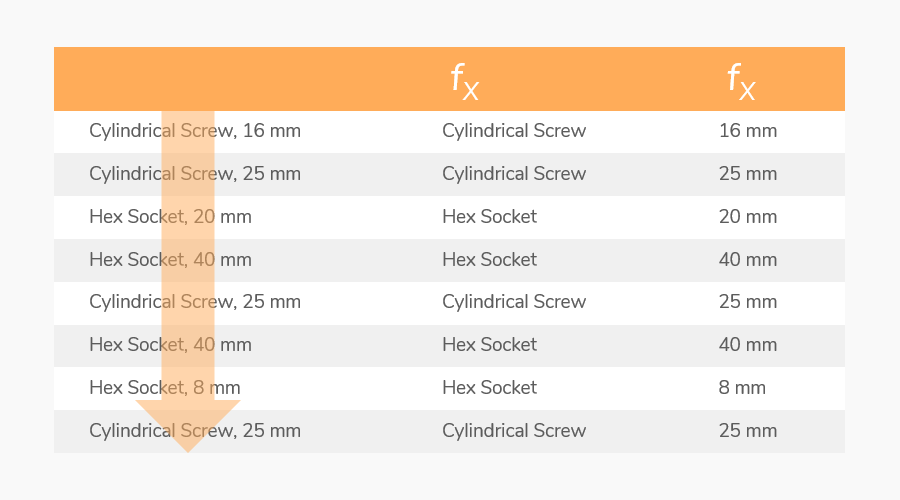
An example of a text split that can be done by combining FIND, LEN, LEFT and RIGHT functions. In this case the comma (,) is used as find value in order for LEFT and RIGHT functions to know where to split on each row.
Product: In the first formula we use -1 in order to remove the comma from the end result.
=LEFT(
[@[Product with variant]];
FIND(",";[@[Product with variant]])-1
)
Variant: In the second formula we need to use LEN to get the whole text string length minus the index value of the comma since we are now counting from the right.
=RIGHT(
[@[Product with variant]];
LEN([@[Product with variant]])-FIND(",";[@[Product with variant]])
)
| Product with variant | Product | Variant |
|---|---|---|
| Cylindrical Screw Cross-Head M6, 16 mm | Cylindrical Screw Cross-Head M6 | 16 mm |
| Cylindrical Screw Cross-Head M6, 25 mm | Cylindrical Screw Cross-Head M6 | 25 mm |
| Hex Socket Head Cap Steel A2 M6, 20 mm | Hex Socket Head Cap Steel A2 M6 | 20 mm |
| Hex Socket Head Cap Steel A2 M6, 40 mm | Hex Socket Head Cap Steel A2 M6 | 40 mm |
| Hex Socket Head Cap Steel A2 M3, 8 mm | Hex Socket Head Cap Steel A2 M3 | 8 mm |