
Courses
Structured References
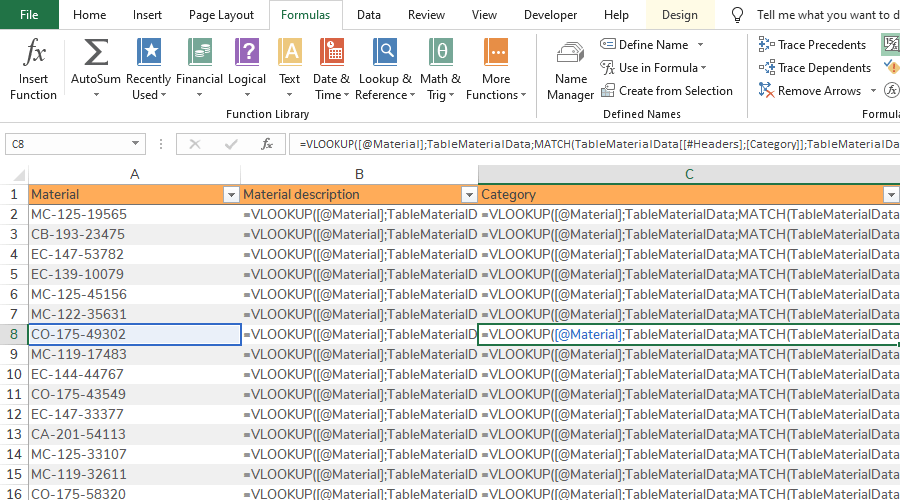
Dynamic formulas
References are often taught in the form of static A1 References. However, when referring to a Table dynamic Structured References can be used instead.
Reasons to use Structured References:
- Dynamic: Formulas will work even when doing changes to the Table.
- Safer: Eliminate errors caused by static cell references, locked by Dollar sign ($).
- Readability: Easier to read and understand formulas and references.
Formula components
Formulas and functions combined with logical operators, references and values are probably the most characteristic part of Excel.
- Formulas: Formulas are calculation expressions composed of functions, logical operators, references and values.
- Functions: Functions are predefined formulas that receives input via parameters, called Arguments.
- Logical operators: Logical operators are used to calculate values and evaluate logical expressions.
- References: References are used to get values from other locations of a workbook.
- Values: Values are stored information in the form of different data types.
Warning: Avoid inconsistent Formulas
You should always use the same formula in the same column, or you will risk having a formula on a single row that does not update automatically, which goes against one of the purposes of using Tables and Structured References. Instead use the IF Function for special cases.
Tip: Tables reduce risk of inconsistent Formulas
The Inconsistent Formula error is more difficult to get by mistake if you use Tables, as Tables changes all formula rows in a column (even if filtered) when a change is done to the formula on a single row.
Logical operators
Logical operators returns logical values.
| Logical operator | Description | Example | Result |
|---|---|---|---|
| = | Equal to | = 40=30 | FALSE |
| > | Greater than | = 40>30 | TRUE |
| < | Less than | = 40<30 | FALSE |
| >= | Greater than or equal to | = 20>=20 | TRUE |
| <= | Less than or equal to | = 40<=30 | FALSE |
| <> | Not equal to | = 40<>30 | TRUE |
Tip: Logical Operators as Criteria
Logical operators are useful for calculating values and evaluating logical expressions in Logical Functions, but also to set criteria for functions like SUMIFS.
Values
Common data types includes Number, Text, Date and Logical.
| Value | Description | Example |
|---|---|---|
| Number | Numbers can be used in calculations with logical operators. | 450693 |
| Text | Can contain numbers, but will not be interpreted as a numbers. | Supplier name 1 |
| Date | Needs Date Format or the cell output will look like five digit numbers. | 2020-01-15 |
| Logical | TRUE or FALSE values that can be used in logical statements. | TRUE |
References
The combination of a unique Table name and a Table Header forms the Structured Reference. Structured References are written differently from A1 References but also behaves differently:
- Coherent formulas: Structured Reference formulas look the same for every row in a column, if written correctly.
- Auto extend: Structured Reference formulas will automatically extent to other rows in the Table when written on one row, even if the Table is filtered.
- Auto change: Structured References formulas will automatically change for other rows in a Table when changing on one row, even if the Table is filtered.
This makes Structured References less error prone.
A1 References:
= VLOOKUP(
$A2;
'Material list'!A:X;
MATCH('Material list'!$F$1;'Material list'!$A$1:$X$1;0);
0)
Structured References:
= VLOOKUP(
[@Material];
TableMaterialData;
MATCH(TableMaterialData[[#Headers];[Sub category]];TableMaterialData[#Headers];0);
0)
Lets break down the Structured Reference components of the formula:
| Structured Reference | Description |
|---|---|
| [@Material] | Returns the value from Material column on the same row as the formula. |
| TableMaterialData | Returns the data area of the Table (excluding Totals) named TableMaterialData. |
| TableMaterialData[[#Headers];[Sub category]] | Returns the Sub category Header name in TableMaterialData. |
| TableMaterialData[#Headers] | Returns the Header array, i.e. all Headers in TableMaterialData. |
As shown in the Table, Structured References has a specific syntax compiled of certain rules.
Warning: Avoid static text References
In the MATCH Function the Structured Reference “TableMaterialData[[#Headers];[Sub category]]” has been used instead of the text; “Sub category”. The reason is that if someone changes the header name of Sub category column in TableMaterialData, the formula will automatically change and still work. If the static text had been used, the formula would have stopped working in this case.
Structured References rules
Structured References refers to different parts of the Table with sets of rules.
The following layers of rules can be identified:
- General rules: Refers to general parts of the Table, e.g. all data. General rules does not consist of any specific names for that particular reference Table.
- Specific rules: Refers to specific parts of the Table, e.g. a specific column of data. Specific rules are general rules combined with specified names, e.g. a column name.
- Special rules: Special rules that needs to be considered when configuring Structured References, e.g. special characters.
TableName [ [#Data];[#Totals] ; [Column name A]:[Column name A] ]
The fastest way to create Structure References is simply selecting the reference Tables and let Excel generate the Structured References. You should however understand Structured References in order to be able to interpret them or change them if needed.
Tip: Let Excel Generate Structured References
The easiest way of creating Structured References is simply selecting parts of the reference Table and let Excel generate the Structured References.
General rules
General rules for Structured References consists of:
- Table name reference
- Table elements references: [#All], [#Headers], [#Data], [#Totals]
The following elements are marked up in the image: [#Headers], [#Data], [#Totals]
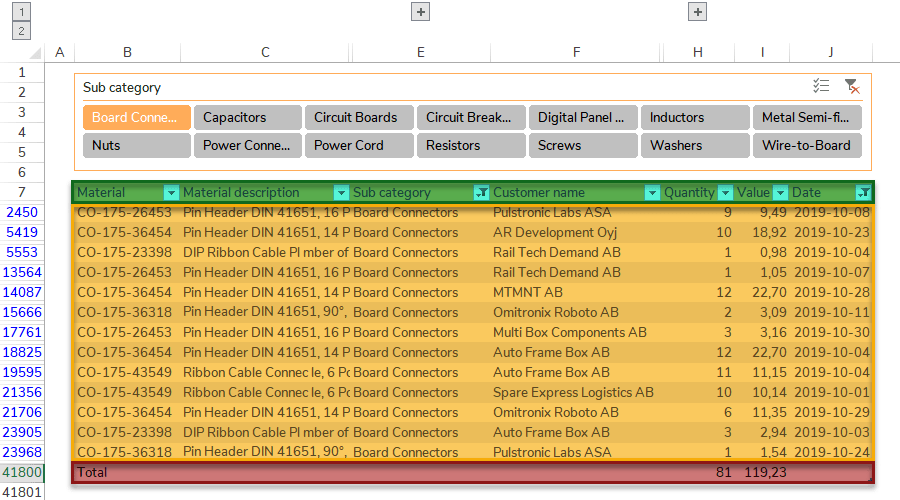
Examples of how Table names are combined with Table elements to form Structured References:
| Structured Reference | Description |
|---|---|
| TableName[#All] | The complete Table with all its elements: [#Headers], [#Data], [#Totals]. |
| TableName[#Headers] | Only Headers row element. |
| TableName[#Data] or TableName | Only Data element. |
| TableName[#Totals] | Only Totals row element. |
| TableName[#Data];[#Totals] | Multiple elements, separated by Semi-colon (;). |
Specific rules
Specific rules for Structured References consists of:
- Specific columns
- Specific ranges
The specific columns or ranges are defined after the Table name reference and Table elements references, separated by Semi-colon (;).
| Structured Reference (Examples) | Description |
|---|---|
| TableName[[#All];[Column name A]:[Column name B]] | Elements (e.g. All) for specific range of columns. |
| TableName[[#Totals];[Column name]] | Elements (e.g. Totals) for specific column. |
| TableName[[Column name]:[Column name B]] | Data for specific range. |
| TableName[[#Data];[#Totals][Column name]] | Multiple elements for specific column. |
| [@ColumnName] or [@[Column name]] | Value from another column on the same row as the formula. |
Special rules
Special rules for Structured References:
| Structured Reference | Description | Requires |
|---|---|---|
| [‘#Column name] | Names containing certain special characters: Brackets ([) and (]), Pound sign (#), Single quotation mark (‘) | Initial single quotation mark (‘) |