
Courses
Number Formats
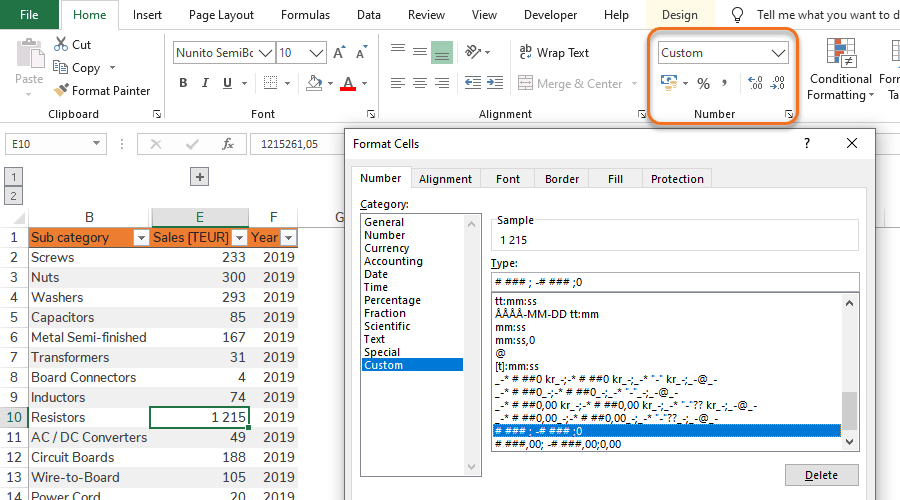
Display of numbers
Number Formats are used to change the way numbers are displayed without changing the numbers themselves. This is an important tool in building dynamic spreadsheets that are presentable in a way that fits the user and the audience. For instance, you don’t want to present last year’s profit to a CEO like 39000000 but rather as 39 000’ or 39’’.
Basic Number Formats
Basic Number Formats are available in the Excel menu. This include Accounting Number Format (with currency and thousand divider), Percent Style, Comma Style (with thousand divider) and the possibility to increase/decrease the number of decimals displayed.
The drop-down list will show other basic built-in formats such as the Date Formats and the Percentage Format.

Tip: Dynamic Number Formats in Tables
Make sure that the Number Format is applied to the complete Table column in order for the Number Format to automatically extend to new rows when the Table is extended.
Tip: Product numbers without initial zeros and blank spaces
To avoid errors it is recommended to create product numbers without initial zeros and blank spaces.
Warning: Database update with product numbers containing initial zeros
For instance Excel will store a 6 digit product number; 005602, as 5602 in General Format. This can be visually handled with Custom Number Formats. However, if you try to update an ERP database by uploading a CSV file with this Custom Number Format there is a risk that the ERP will not recognize the product numbers. Instead force initial zeros in Excel with the Text format.
Custom Number Formats
In addition to Excel built-in Number Formats, Custom Number Formats can be created. The Custom Number Formats are built on up to 4 sections of code to format 4 value types. The code sections are divided by “;”.
The 4 sections of code consists of formatting for:
- Positive values
- Negative values
- Zero values
- Text formats
[Green]# ##0,00 ; [Red] -# ##0,00 ; [Yellow] 0,00 ; [Grey] “TEXT: “@
The table below shows how the same formula gives different results on the 4 different value types.
| Number Format code | Cell value | Result |
|---|---|---|
| [Green]# ##0,00;[Red] -# ##0,00;[White] 0,00;[Yellow] “TEXT: “@ | 10000000 | 10 000 000,00 |
| [Green]# ##0,00;[Red] -# ##0,00;[White] 0,00;[Yellow] “TEXT: “@ | -10000000 | -10 000 000,00 |
| [Green]# ##0,00;[Red] -# ##0,00;[White] 0,00;[Yellow] “TEXT: “@ | 0 | 0,00 |
| [Green]# ##0,00;[Red] -# ##0,00;[White] 0,00;[Yellow] “TEXT: “@ | Hello world! | TEXT: Hello world! |
Once you understand the code breakdown, it will be easier to understand the existing Number format codes in the Custom section. The easiest way to create Custom Number Formats is to base them on existing Custom Number Format codes and make adjustments according to your needs.
Useful Custom Number Format codes
Below you will find a list of common useful Custom Number Formats. Use these examples and the existing Excel codes as a basis for modifying and creating your own Custom Number Formats.
| Number Format code | Cell value | Result | Comment |
|---|---|---|---|
| # ###; -# ###;0 | 10000000 | 10 000 000 | Thousand divider |
| # ### ; -# ### ;0 | 10000000 | 10 000 | Thousands (space at end in code) |
| # ### ; -# ### ;0 | 10000000 | 10 | Millions (double space at end in code) |
| # ### ”; -# ### ”;0 | 10000000 | 10” | Millions with apostrophes |
| # ###,00; -# ###,00;0,00 | 1500,9 | 1 500,90 | Decimals (change “,” to “.” depending on language) |
| 000000 | 5602 | 005602 | Initial zeros |
Quick guides
Step 1 – Open Custom Number Formats:
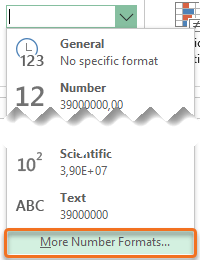
Option 1 – Go to Home > Number section > Select the Drop-down list > More Number Formats…
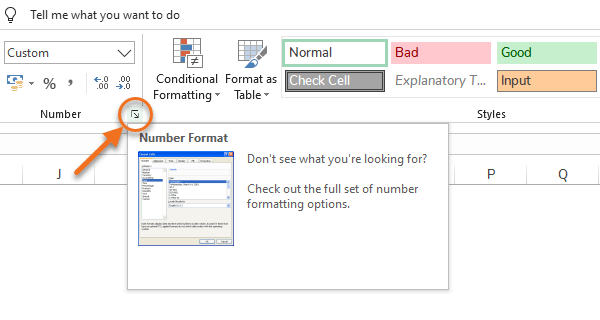
Option 2 – Click the corner of the Number section.
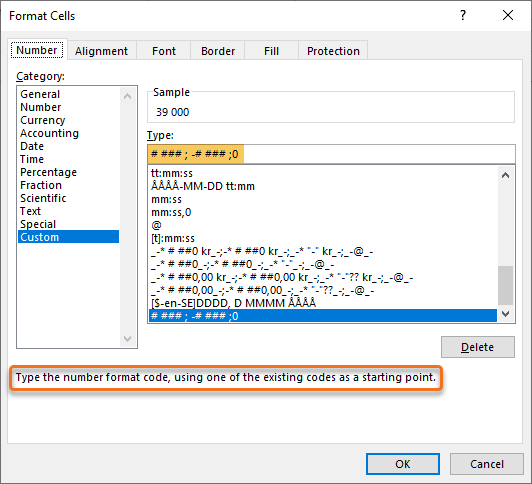
Step 2 – Select Custom Category.
Step 3 – Select an existing Number format code that is similar to the Custom Format you want to create.
Step 4 – Modify the code.
Step 1 − Change the Number Format of the material numbers range to Text.
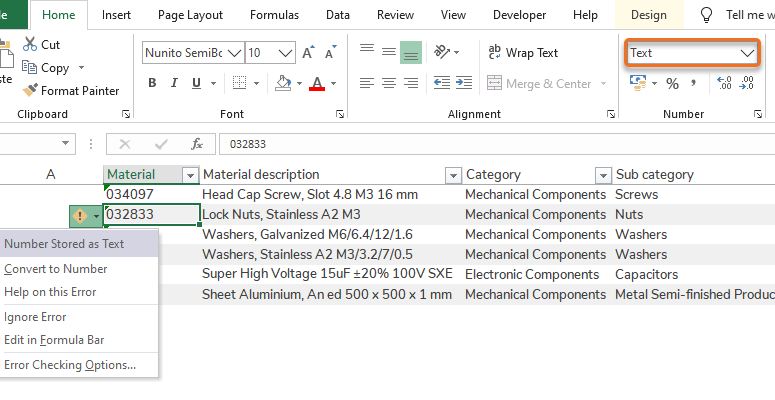
Step 2 − Paste the range of material numbers into the Text Format range.