Courses
Formula Structure
Structuring Structured References
To solve a problem there is usually more then one function needed. It is also common that the functions are nested, i.e. that you put a function in an argument of the other function. The common way of keeping code with nested functions readable is using indentation.
Single line
Formula on a single line:
= VLOOKUP([@Material];TableMaterialData;MATCH(TableMaterialData[[#Headers];[Sub category]]; TableMaterialData[#Headers];0);0)
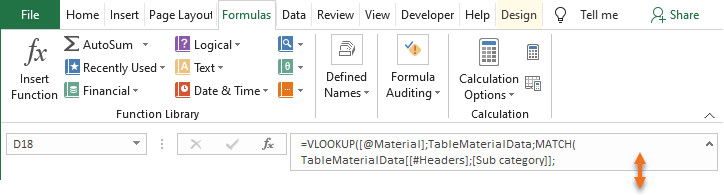
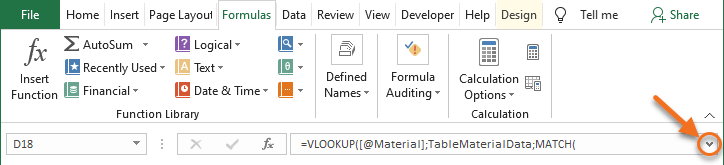
Tip: Expand the Formula Bar
To get a better overview of formulas, expand the Formula Bar and preferably keep this setting.
Indentation
VBA code supports indentation, but not formulas. If the formula below is pasted into the Formula Bar it will generate an error and pressing the Tab key will only move the marker to the next cell to the right.
Formulas with indentations is not possible to use:
= VLOOKUP(
  [@Material];
  TableMaterialData;
  MATCH(
    TableMaterialData[[#Headers];
    [Sub category]];
    TableMaterialData[#Headers];
    0
  );
  0
)
Multiple lines
Formulas with multiple lines can be pasted into the Formula Bar. New lines can also be added directly in the Formula Bar when writing the formula.
Tip: Add new line in Formula Bar
Press Alt + Enter ↵ to add add a new line in the Formula Bar. Pressing only Enter will just make the marker skip to the cell beneath current cell.
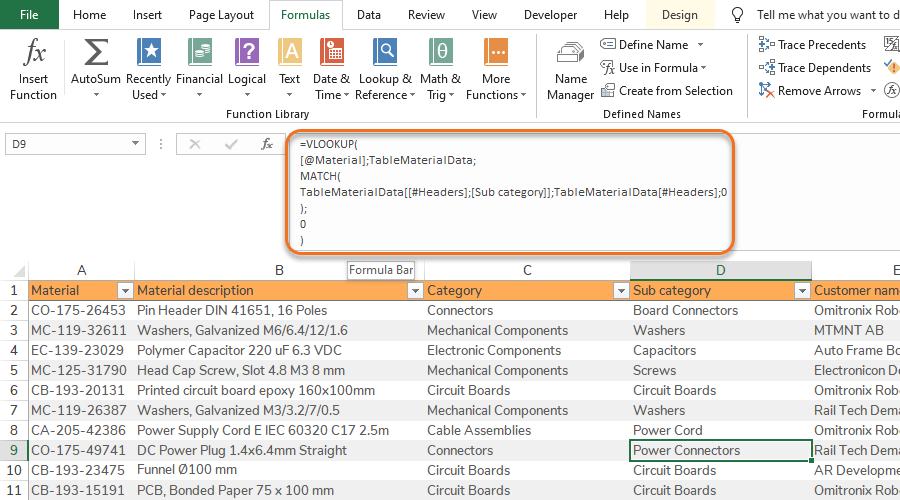
Formulas with multiple lines are possible to use:
= VLOOKUP(
[@Material];
TableMaterialData;
MATCH(
TableMaterialData[[#Headers];
[Sub category]];
TableMaterialData[#Headers];
0
);
0
)
However, to improve readability it makes sense to compress the formula a bit trying to pair the functions arguments:
= VLOOKUP(
[@Material]; TableMaterialData;
MATCH(TableMaterialData[[#Headers];[Sub category]]; TableMaterialData[#Headers]; 0);
0)
Split functions
Another way of simplifying the formula is to break out the nested functions and put them in separate columns that are hidden with Grouping. This solution is especially useful for longer, more complex formulas, e.g. when there is several layers of logical tests (IF, AND, OR etc.).
Table Header: Sub category index
= MATCH(TableMaterialData[[#Headers];[Sub category]];TableMaterialData[#Headers];0)
Table Header: Sub category
= VLOOKUP([@Material];TableMaterialData;[@[Sub category index]];0)
Quick guides
Shortcut: Ctrl + ⇧ Shift + U
By dragging the bottom of the Formula Bar it can be increased further.