Courses
Formula Auditing
Structured problem solving
There is a lot of tools and functionality presented in the courses that is used to minimize errors. The most important functionality to proactively prevent errors when it comes to formulas is Tables and Structured References. However, errors will occur sooner or later, which is why it is important to test your spreadsheets properly. It is important to know techniques that supports a structured way of finding the errors and correcting them.
Trace Precedents and Dependents
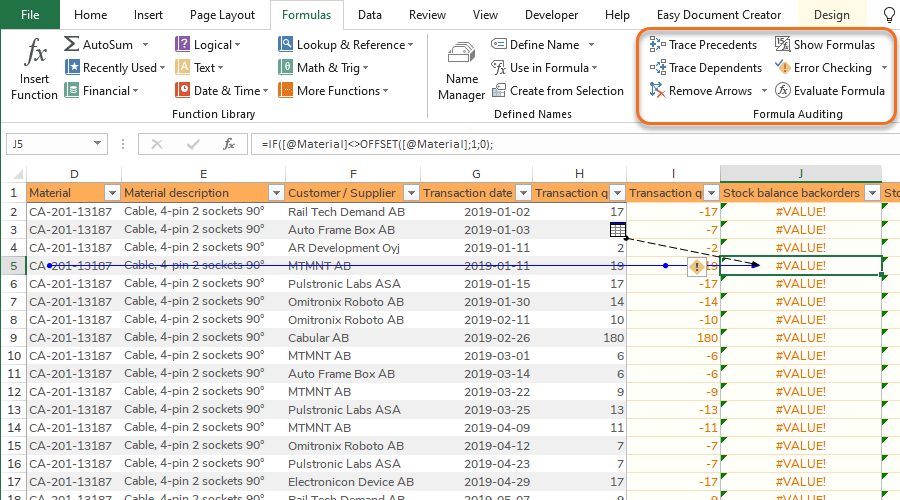
The Trace functionality can be used to get a quick graphical overview of how formulas are connecting different cell values.
- Trace Precedents: Shows an arrow from the cells that affect the value of selected cell.
- Trace Dependents: Shows an arrow to the cells that is affected by the value in selected cell.
- Remove Arrows: Simply removes the arrows.
Show Formulas
Show Formulas gives an overview of all the formulas in the spreadsheet which can also be useful when tracking errors. When you press Show Formulas the formulas will be shown in the cells instead of the return values.

Error Checking
Error Checking goes error by error (identified by Excel) throughout the spreadsheet and shows where the error is located.
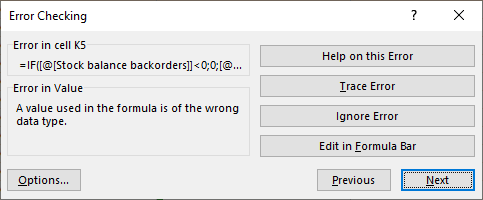
The Error Checking window offers a few possible actions to be taken:
- Error in Value: Excels description of the cause of the error type.
- Help on this Error: Takes you to Microsoft help page for the error type.
- Trace Error: Shows arrows to the referenced cells if they cause the error.
- Ignore Error: Simply ignores it. This is not recommended as you should be able to build a spreadsheet without errors. Rethink the design instead of ignoring errors.
- Edit in Formula Bar: Lets you edit the formula manually.
Evaluate Formula
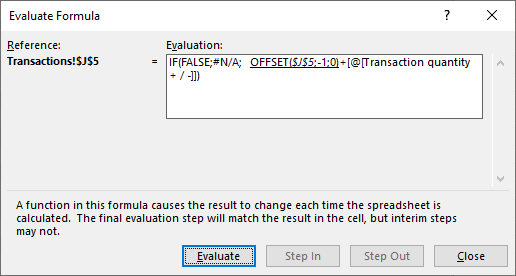
Evaluate Formula is especially useful for long formulas with many nested functions as it lets you know when the error occurs. It calculates the formula step by step like a debugger.